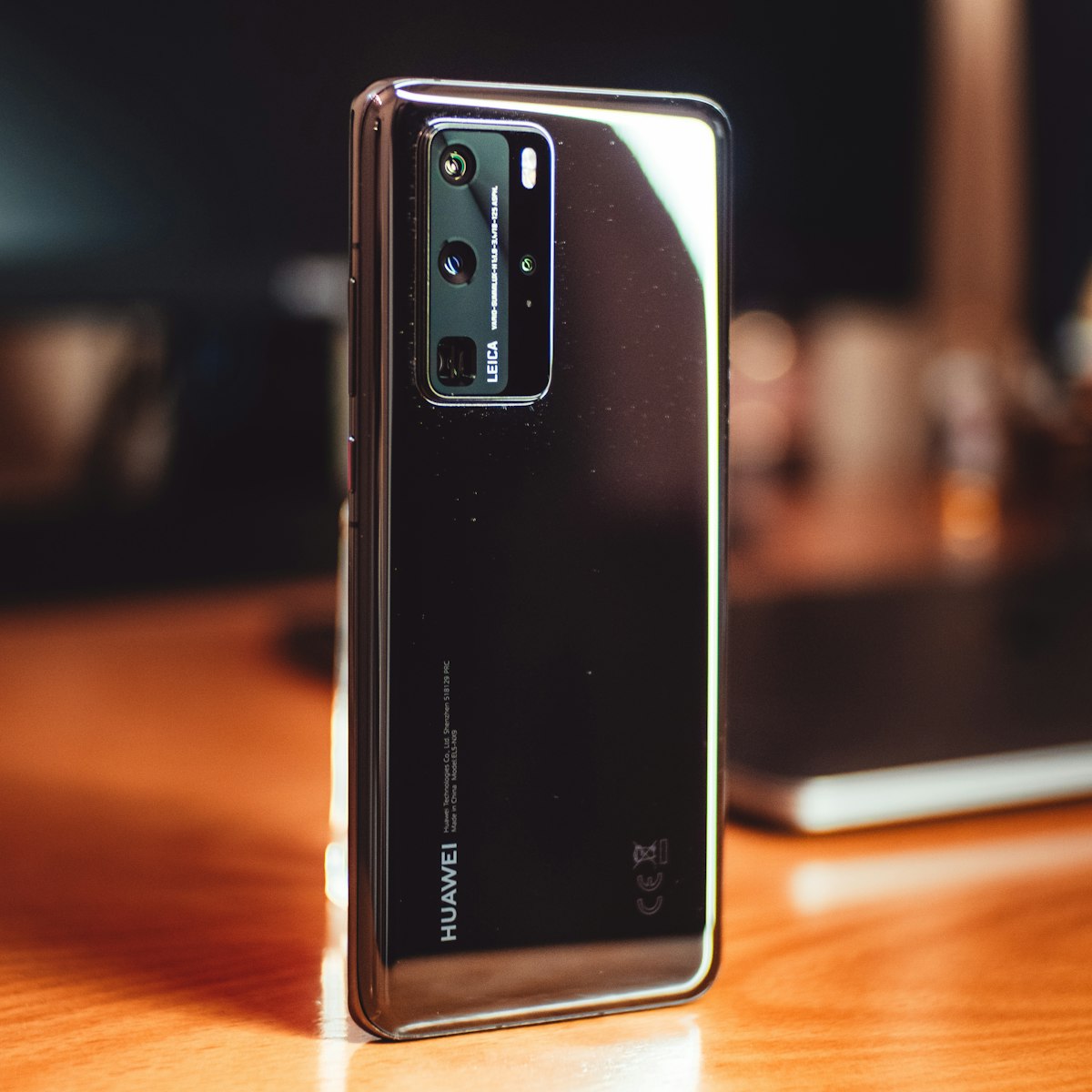
If your Android phone's battery doesn't make it through the day, the most likely culprit isn't a worn-out battery — it's apps running in the background doing things you never asked them to do. Here's how to identify the drain and shut it down.
Find Out What's Actually Draining Your Battery
Go to Settings → Battery → Battery Usage (the exact path varies slightly by manufacturer). Sort by consumption over the last 24 hours. You're looking for apps in the top five that you don't remember actively using. Social media apps are chronic offenders — they run in the background refreshing feeds, loading ads, and tracking your location even when you haven't opened them.
The Seven Changes That Make the Biggest Difference
1. Restrict background activity per app. Long press any app → App Info → Battery → Restricted. This stops apps from waking up when you're not using them. Do this for every social media, news, and shopping app.
2. Turn off Always-On Display if you have one. Keeping the screen partially lit all day costs more than most people realise. Turn it off or set it to only activate when you lift the phone.
3. Set screen timeout to 30 seconds. Settings → Display → Screen Timeout. The display is your single biggest battery consumer. Don't let it stay on longer than needed.
4. Use Adaptive Battery. Settings → Battery → Adaptive Battery. This uses on-device AI to learn which apps you actually use and restricts battery access for everything else. Let it learn for a week and it makes a noticeable difference.
5. Turn off Wi-Fi scanning and Bluetooth scanning. Settings → Location → Wi-Fi and Bluetooth Scanning. These features scan for networks and devices even when you're not using either — a constant small drain that adds up over a full day.
6. Enable Dark Mode system-wide. On phones with OLED screens (most flagship and mid-range Androids now), dark pixels are literally turned off. Dark Mode can extend battery life by 15-20% on these devices.
7. Charge to 85%, not 100%. Many Android phones now let you cap charging — Settings → Battery → Charging Limit. Keeping your battery between 20% and 85% significantly extends its long-term health. Share this with someone complaining their phone dies before lunch.